Unifying file viewing across a clinical trial platform
A shared design-system pattern for viewing documents and images on a clinical trial platform, used by people reviewing contracts, medical images and consent forms.
4 weeksSole designer · 1 engineer
7 min read · research, decisions and trade-offs
Challenge
5 products had built 9 separate, often hard-coded viewers for the same need: looking at a file. Each was rebuilt from scratch and behaved differently.
Goal
One pattern any product can adopt, that opens from anywhere and closes without losing your place.
What I did
Spotted and framed the problem, audited every use case, studied 10 other tools, designed the pattern and tested it with each product.
Results
1 pattern
replacing 9 separate, hard-coded viewers
2 variants
shipped into the design system
5 products
using the pattern
Full case study · 7 min read
The use-case audit, the teardown and the pitch
Use-case audit
10 tools studied
Anatomy
In use
The hardest call
From 9 viewers to 1 pattern
5 products had solved file viewing on their own, 9 times over, each with its own controls and behaviour. I replaced them with one shared pattern in the design system.
Before: 9 viewers across 5 products
viewer 1
viewer 2
viewer 3
viewer 4
viewer 5
viewer 6
viewer 7
viewer 8
viewer 9
one pattern replaces them all
After: one shared pattern
Viewer patternone layer, opens from anywhereIn the design system
Media viewerdocuments and images
Custom contentteams build inside it
What other teams have built
Four of the nine existing viewers. Same need, different chrome, controls and behaviour.
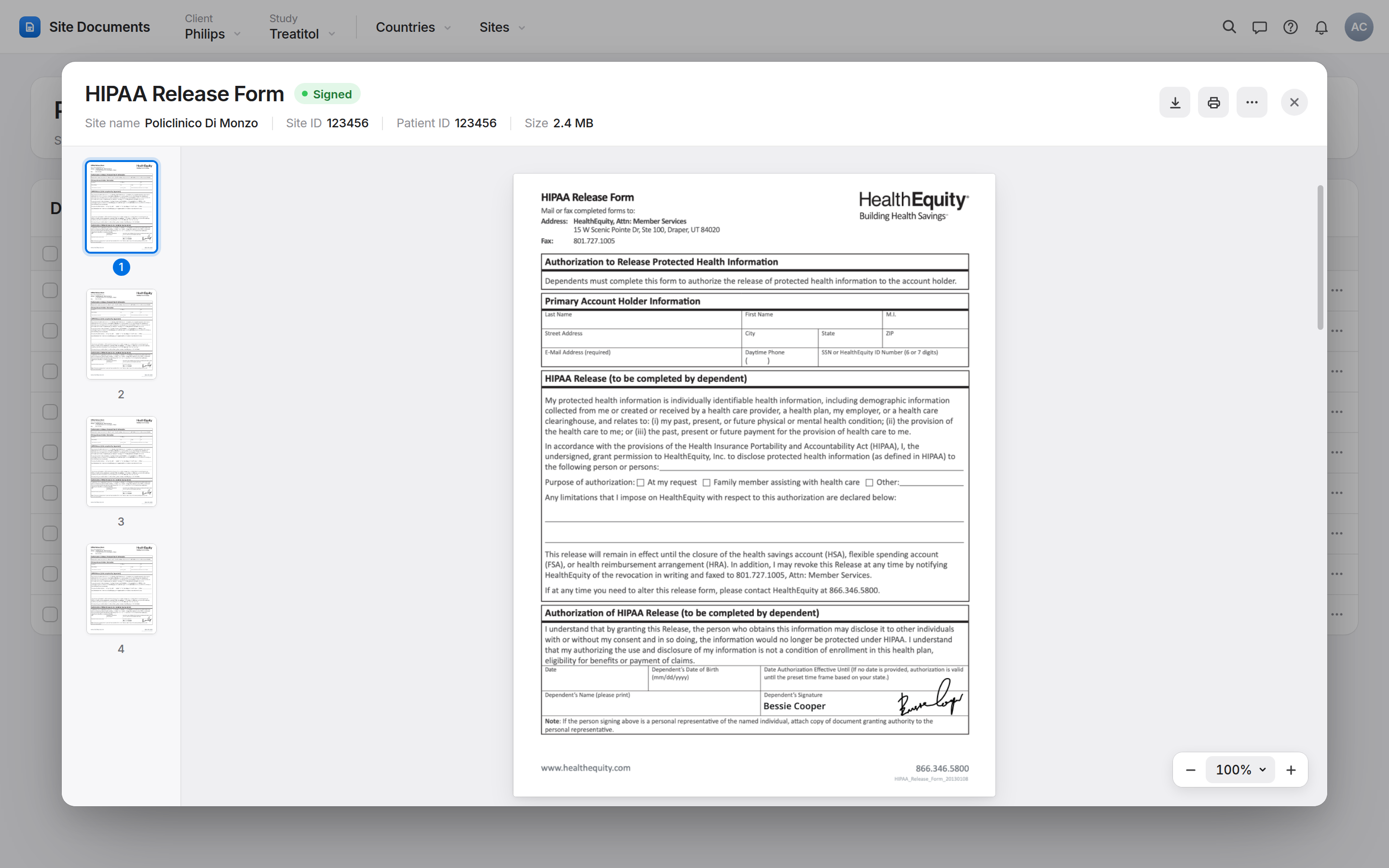
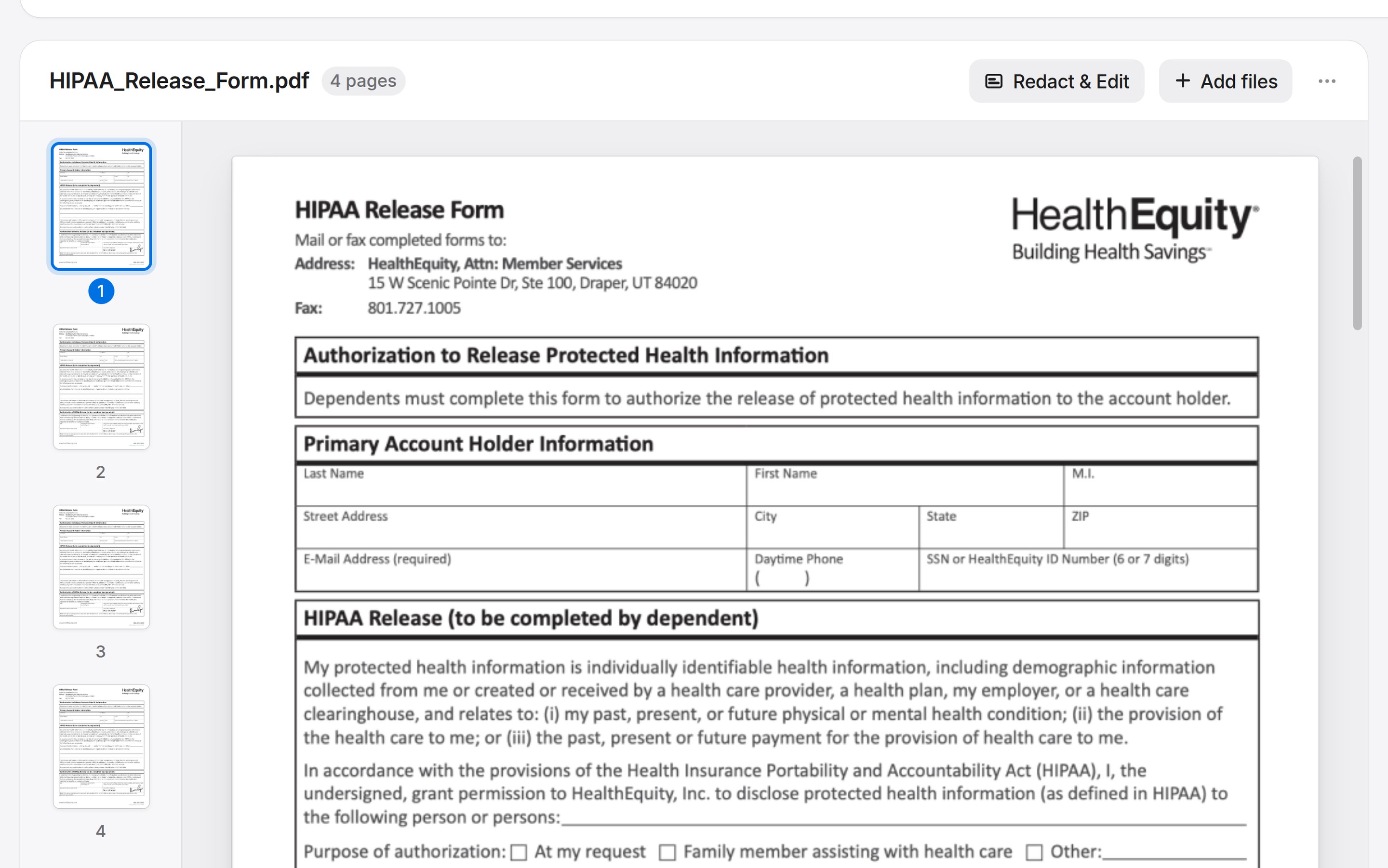
Release form viewer
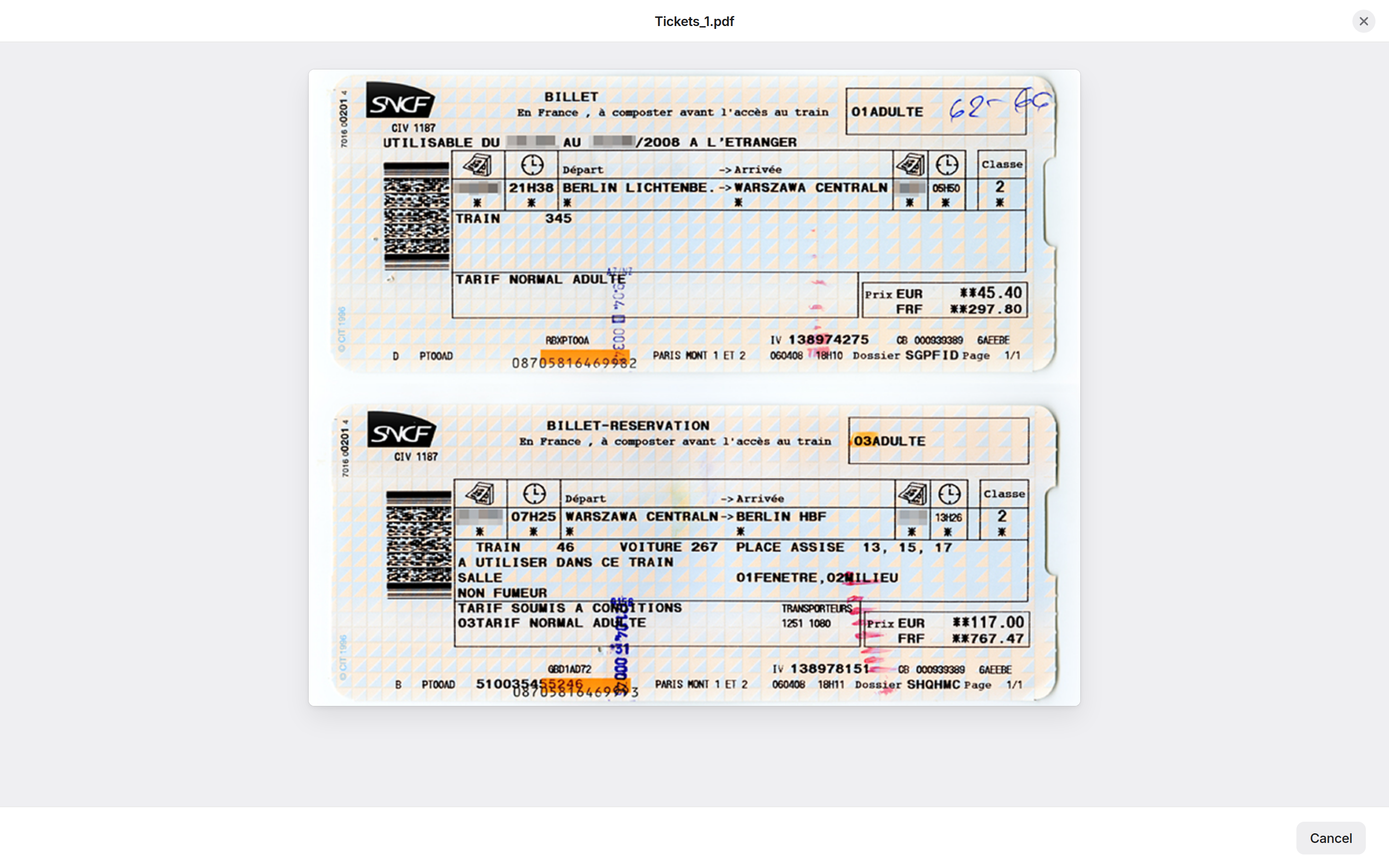
Scanned image viewer
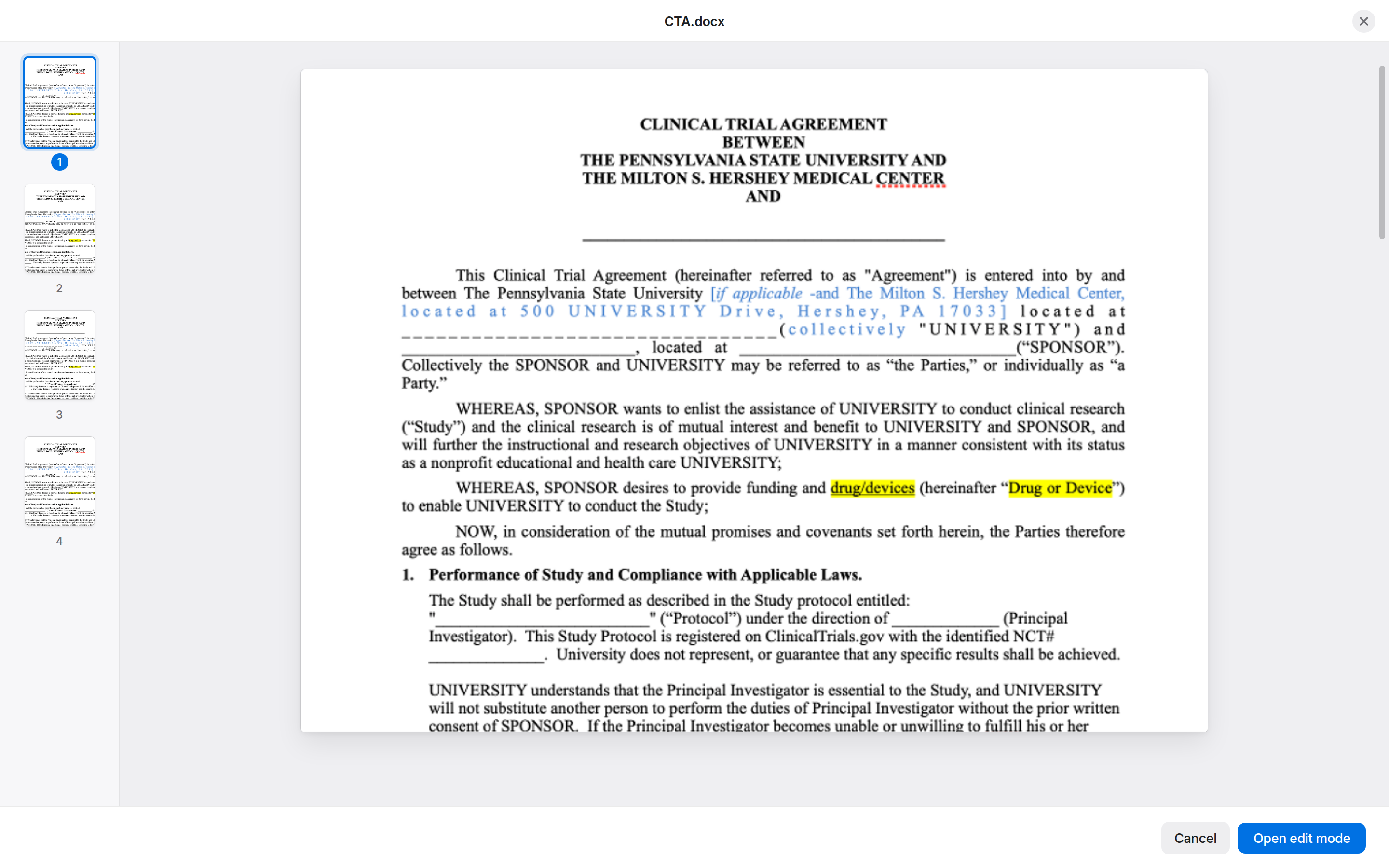
Document viewer
Imaging with side forms
The key insight
A file viewer didn't fit anywhere in the platform's navigation. Too heavy for a pop-up, too temporary for a page. So I stopped treating it as a component and made it a new navigation layer that sits above everything.
Parent page
Child page
Side panel
Modal
Viewer layersits above every level
opens from any level
closes without moving you anywhere
Two design decisions
Decision 1
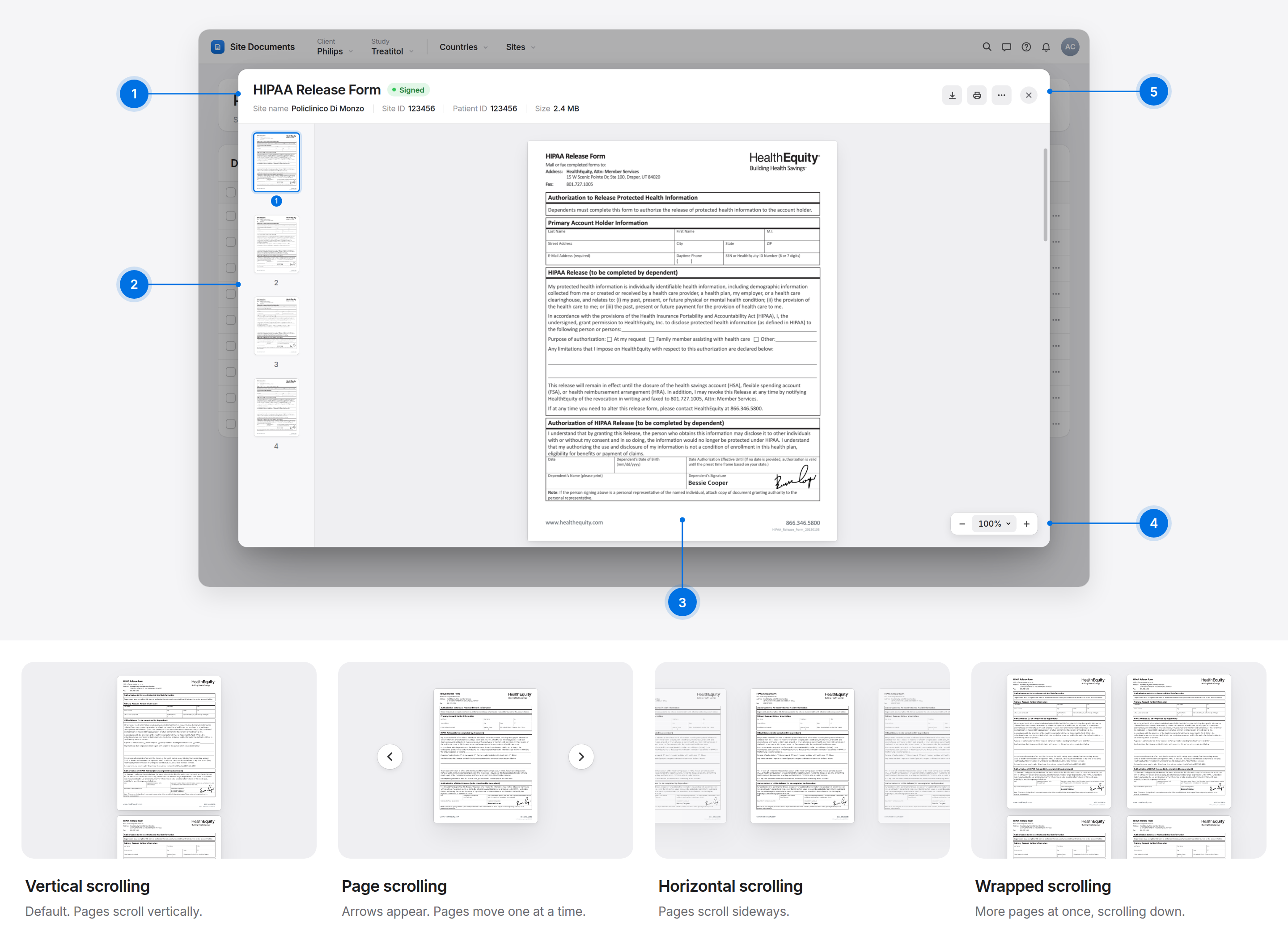
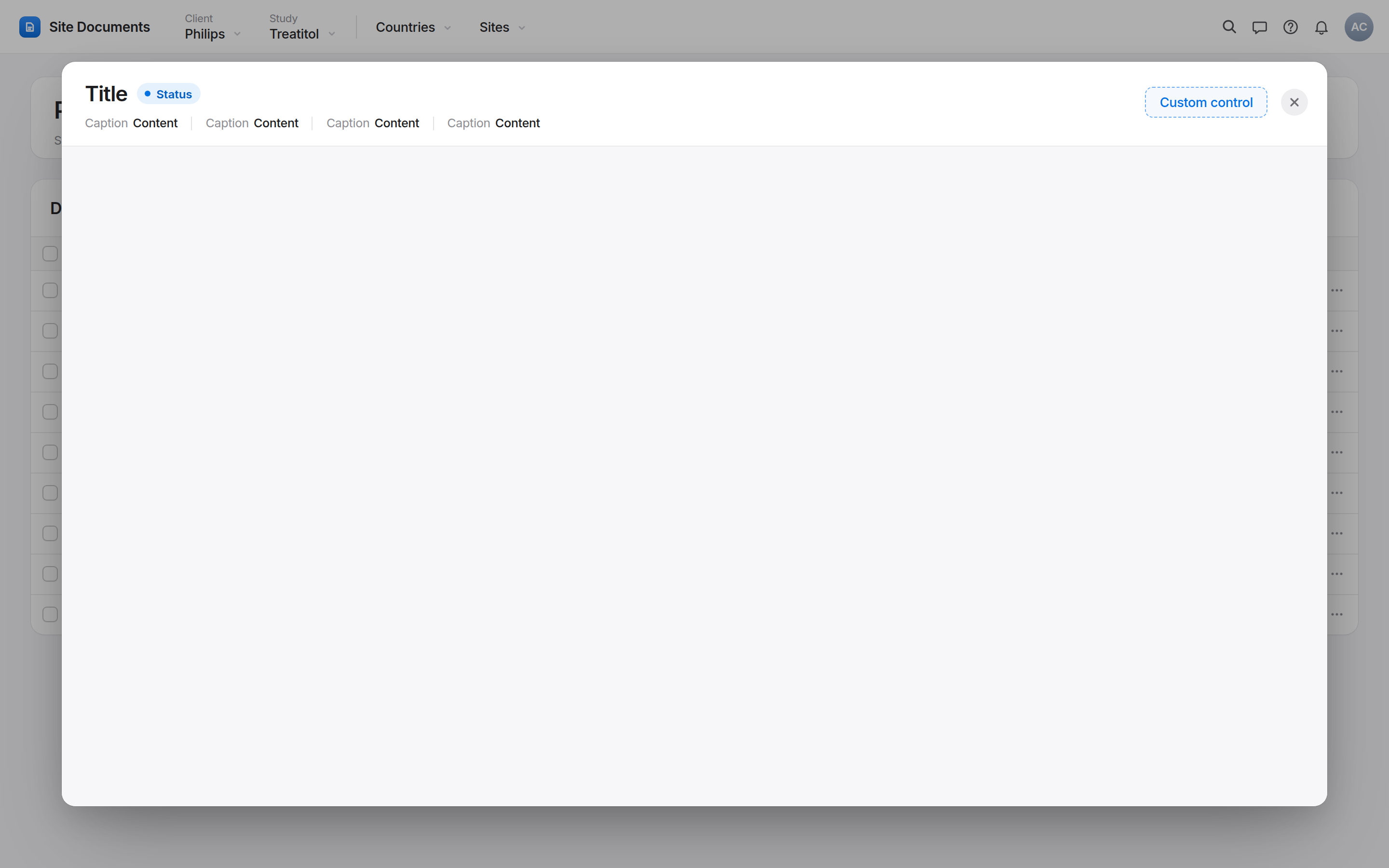
Two variants on one shell
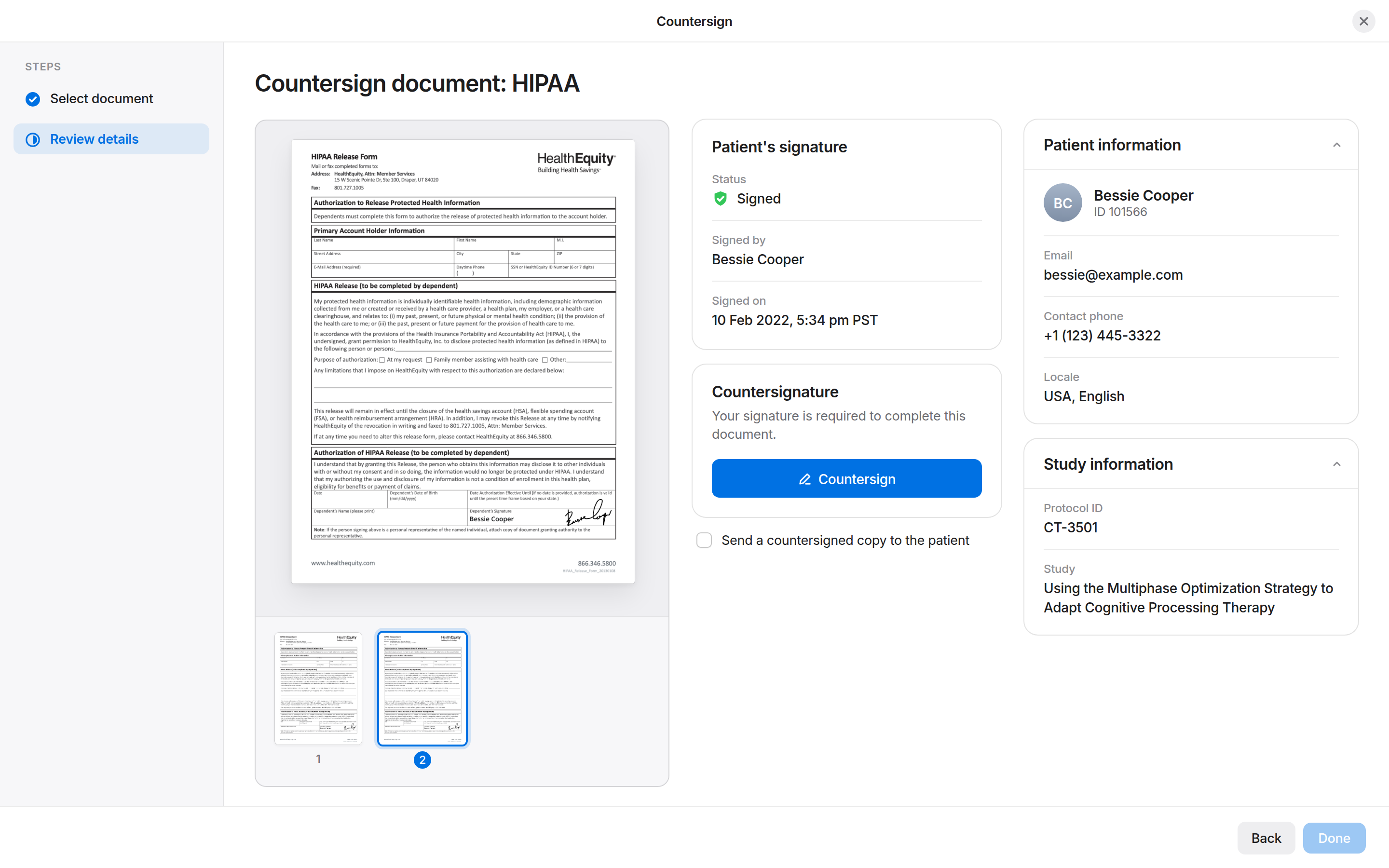
The media viewer handles documents and images with built-in controls. The custom content variant gives teams a blank area inside the same shell for their own flows, such as countersigning.
WhyOnce the pattern was a navigation layer, the content didn't have to be a file. Teams could put a dataset mapper or a sign-off flow inside it and get the same open and close behaviour for free.
Decision 2
Opens anywhere, without losing your place
It opens from an overview page, a child page, a side panel or even a pop-up. Closing it returns you exactly where you were.
WhyMost tools we studied opened files in a new tab, which breaks context, or in a pop-up, which is too cramped to work alongside. A layer above every level avoids both.
Rules for using it
These came from testing the pattern against each of the nine use cases, not written upfront.
✓ Use it for
Quick reference without disruptionConsult a file while staying in the current task.
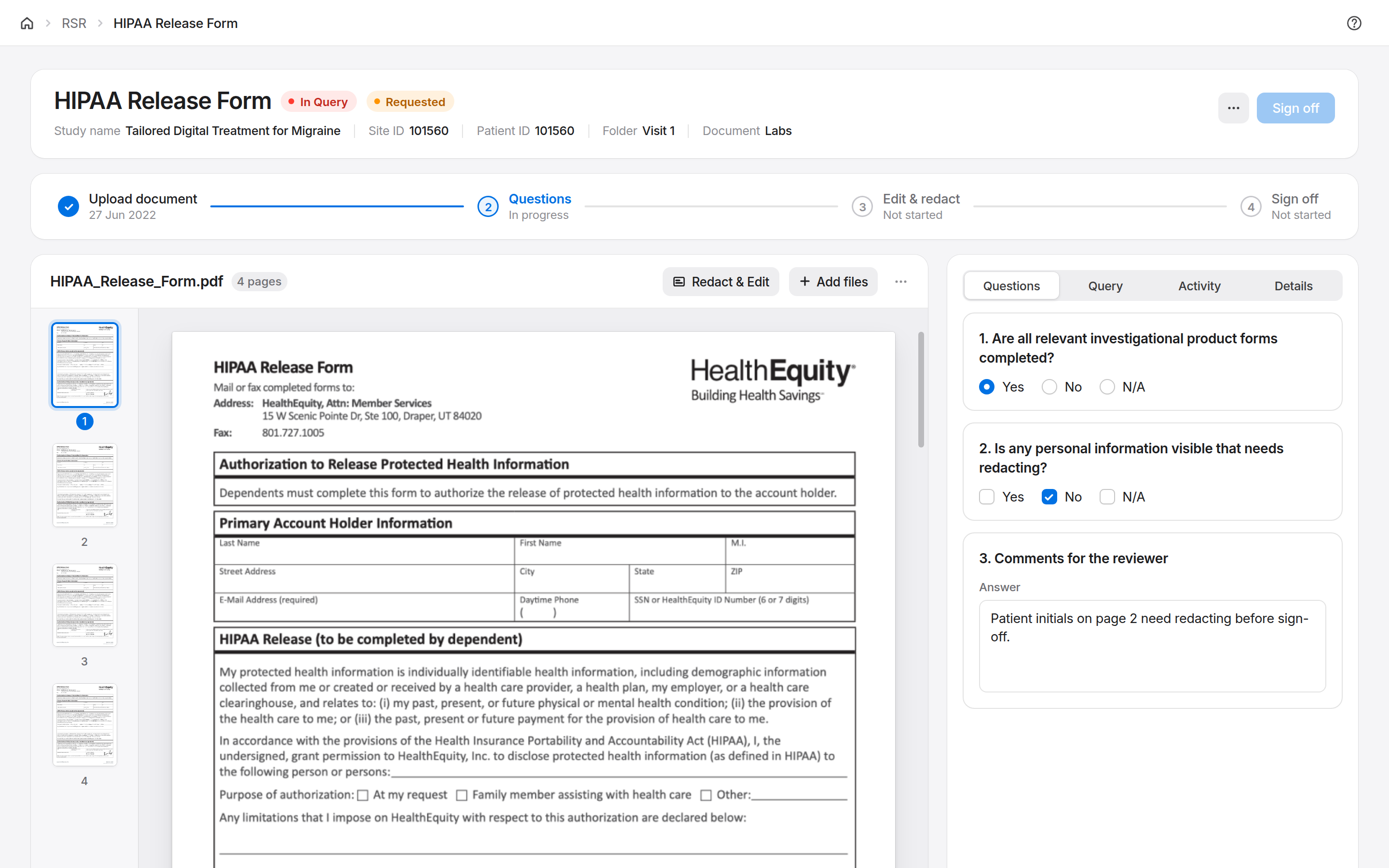
File plus a parallel taskView a document and fill a form, confirm answers or raise a query at the same time.
Fast actions on the filePrint, download or annotate right inside the viewer.
Custom flow, same behaviourAny short flow that opens above the current context and closes without side effects. Use the custom content variant.
✕ Don't use it for
Complex file editingFor substantial edits, open a dedicated editing tool. The viewer is for viewing.
Long multi-step workflowsPast 3 or 4 steps, or with its own sub-navigation, a dedicated page fits better.
The file is the destinationIf the file is the destination rather than a reference, use a full page.
Full case study · 7 min read
From “we need a better viewer” to a new navigation object
The problem wasn't that teams built bad solutions. Every team had to build a complete solution from scratch, for the same need.
Process
9
separate viewers across 5 products
3
groups of use cases
10
external tools studied
4 wk
from framing to development support
Spotted and framed the problem
Collected use cases, then checked with the design system lead that it was worth solving
Collected more use cases
Studied how other tools solve it
Designed and iterated with the design system lead
Tested with users for each product that needed it
Presented, applied feedback and supported development
Use-case audit
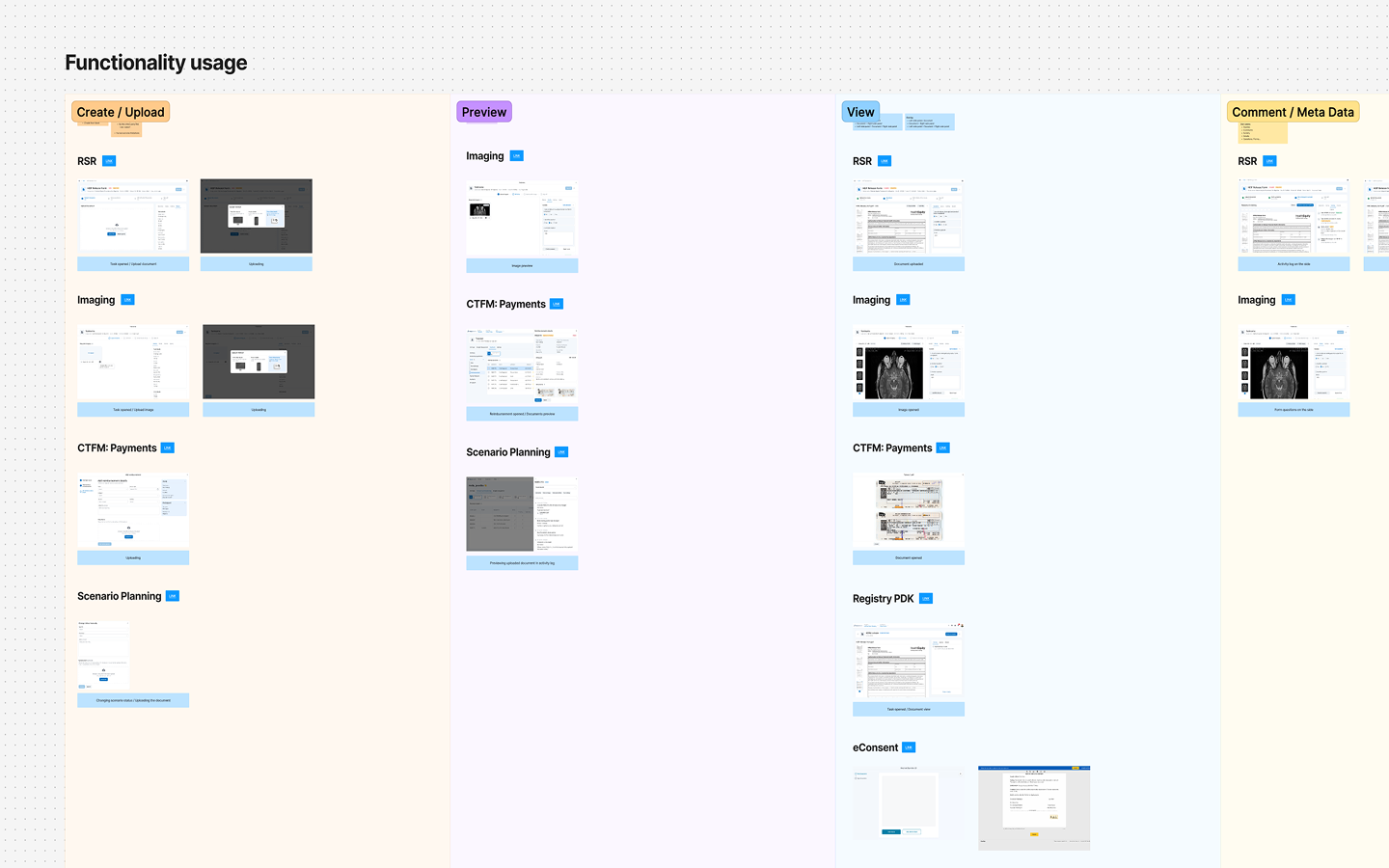
I audited every place in the platform where someone needed to see a file: reviewing contracts and medical images, countersigning consent forms, previewing dataset schemas. Then I grouped them.
GroupCheck without interrupting
Glance at a file and carry on with the task.
GroupFile plus a parallel task
Fill a form, confirm answers or raise a query while the file is open.
GroupFile starts a flow
Opening the file kicks off a multi-step process.
Every use case sorted by function.
How others do it
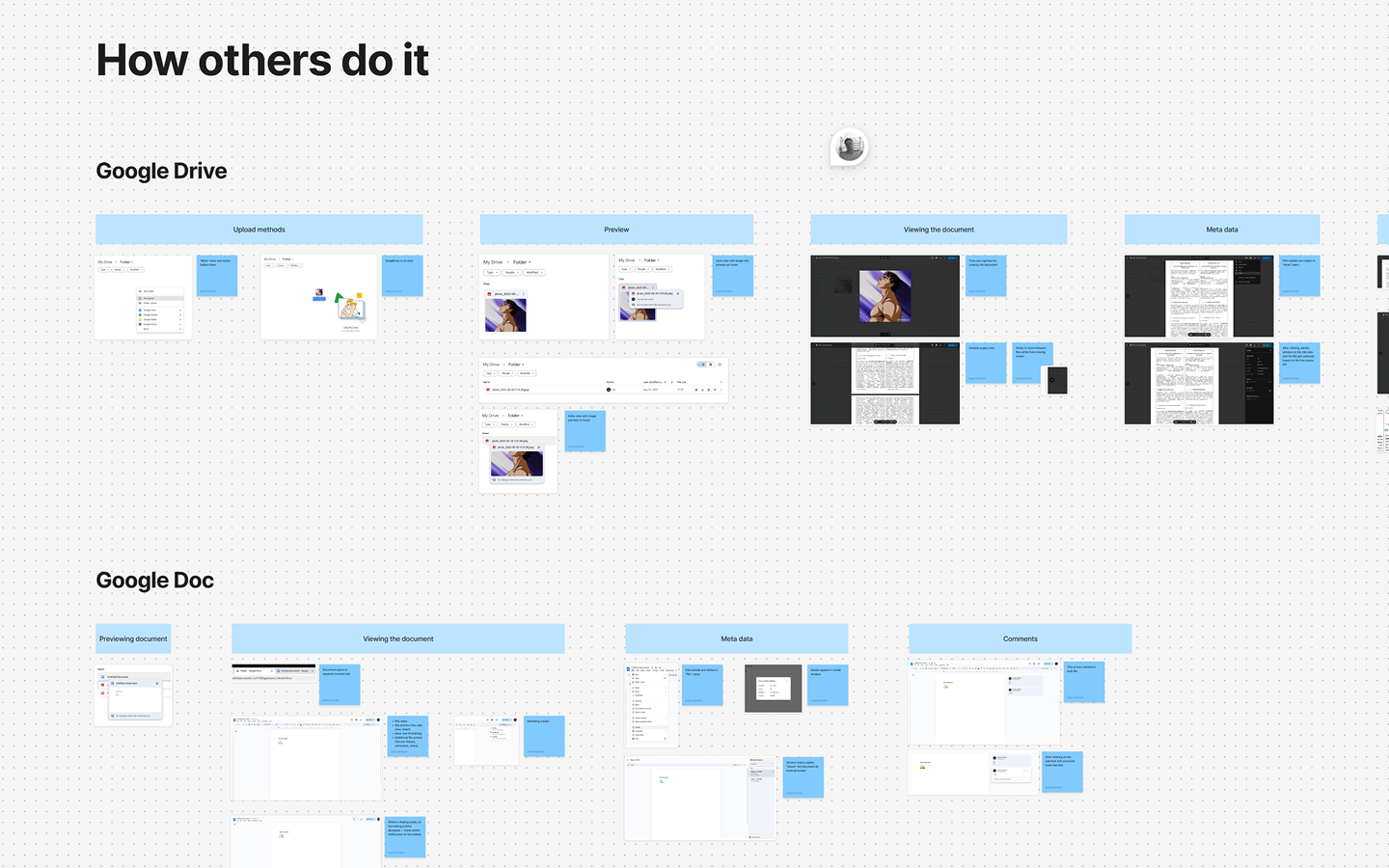
Google Drive, Notion, Figma, DocuSign, Dropbox, Box, Linear, GitHub, Cerner and Epic. Most either open files in a new tab, which breaks context, or in a modal, which is too cramped for a parallel task. None had a clean answer for a regulated, multi-product platform.
Anatomy
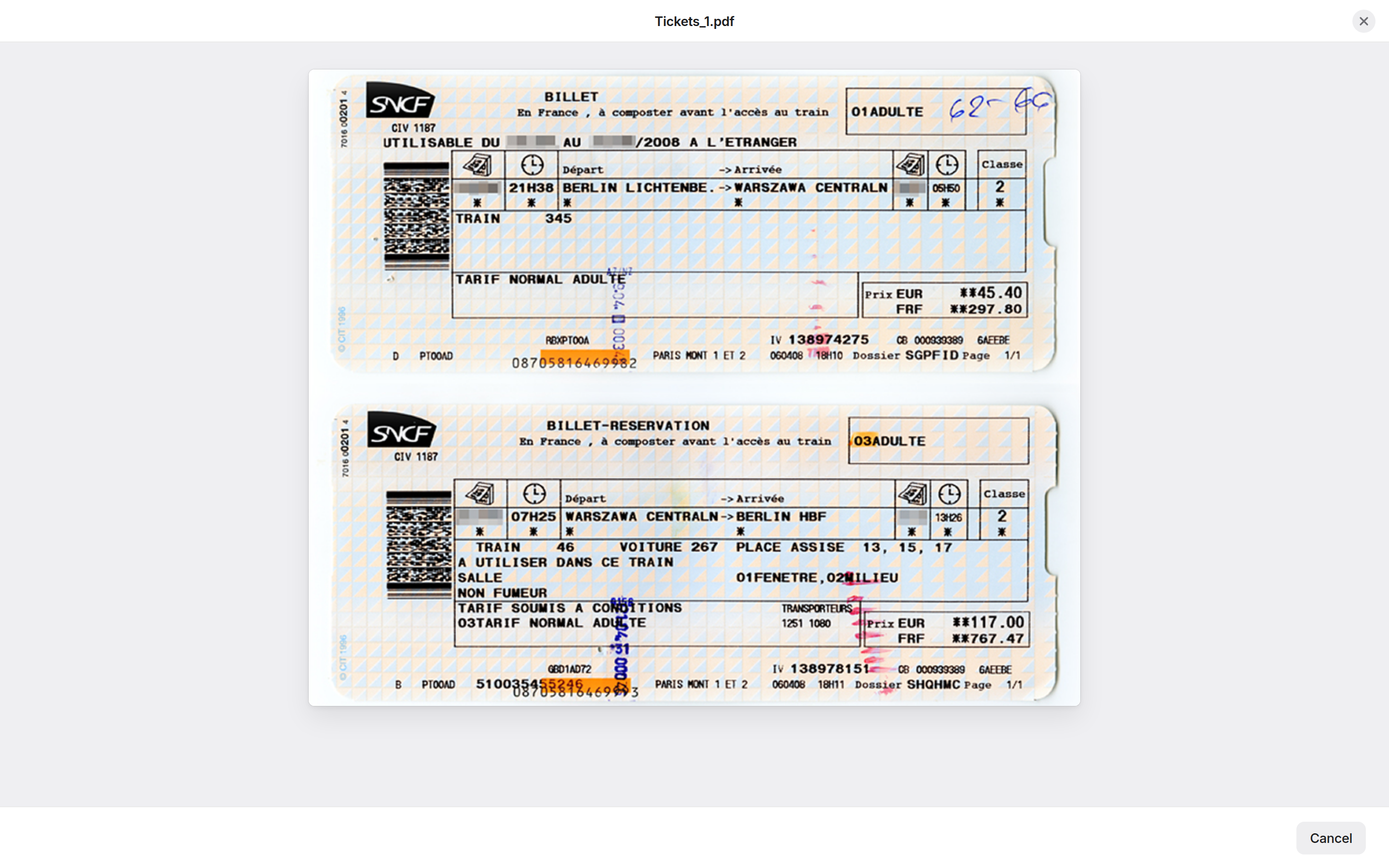
The media viewer: numbered zones for header, pages, controls and zoom, with four scrolling modes (vertical, page, horizontal and wrapped).
The custom content variant: the same shell with a blank interior for teams to build into.
In use across products
Document review with questions alongside
Medical imaging with a form
Countersigning a consent document
Bare viewer for a quick check
The hardest call
We didn’t need a better viewer component. We needed a new type of surface.
The easy path was a better document viewer. I argued for a new navigation object: a named layer in the platform’s hierarchy that opens from anywhere and closes without moving you. It was a bigger commitment and a harder sell, and it’s what made the pattern reusable across the platform.